Setting Up a VMS from Scratch
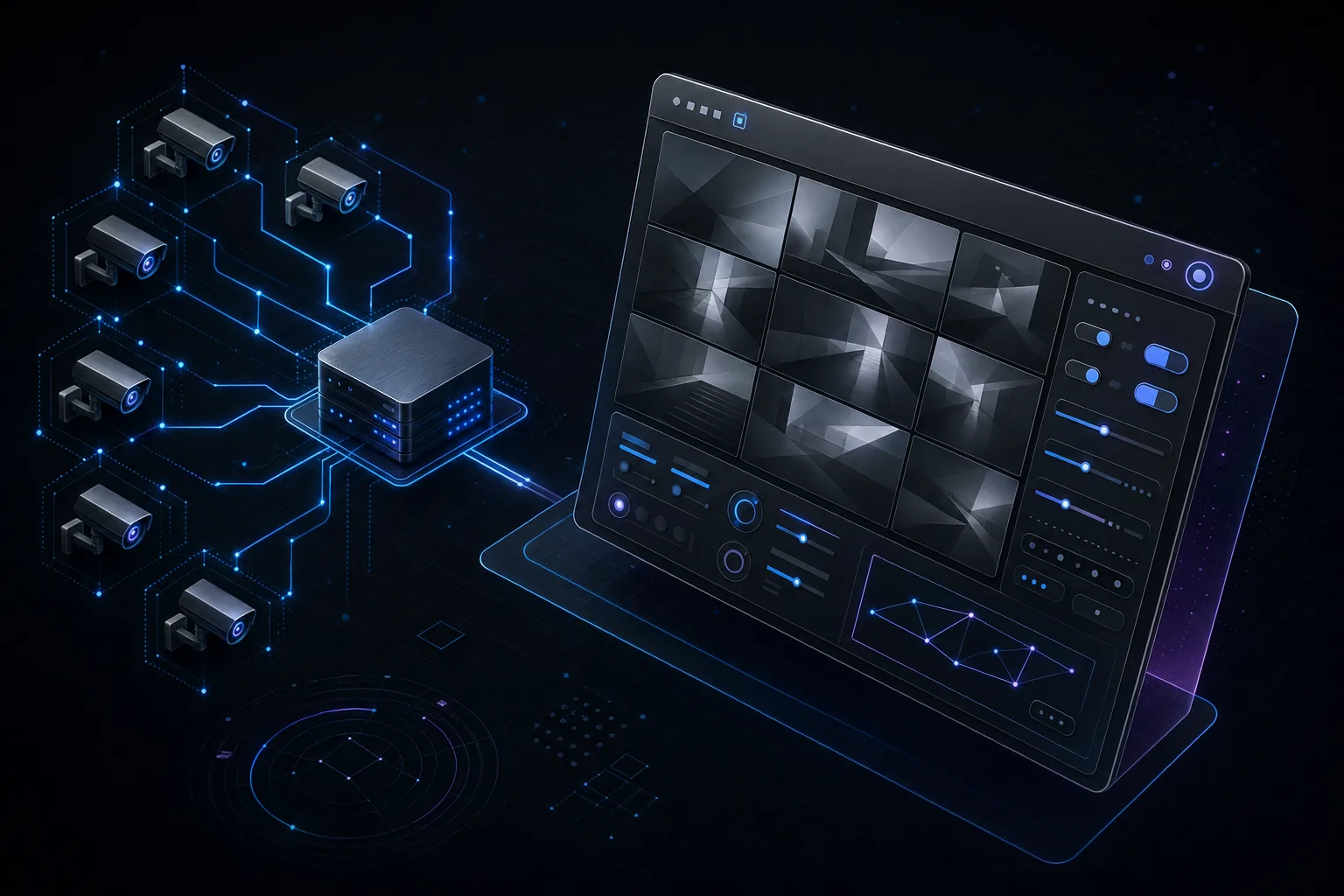
A Video Management System (VMS) is the software platform that ties your entire surveillance infrastructure together. It manages camera connections, handles recording and storage, provides live viewing and playback, manages user access, and increasingly powers AI-driven analytics. Whether you are deploying 16 cameras at a retail store or 500 cameras across a corporate campus, the VMS is the central nervous system of the operation.
This tutorial walks through the complete process of deploying a VMS from a blank server to a fully operational system. While the specific steps vary between platforms, the fundamental workflow is consistent across all major VMS solutions. We will reference the three most commonly deployed enterprise platforms: Milestone XProtect, Genetec Security Center, and Exacq Vision. By the end of this guide, you will understand every step of the process and the decisions you need to make along the way.
What This Tutorial Covers
- Choosing a VMS platform
- Server hardware requirements
- Operating system setup
- Network architecture and VLANs
- VMS software installation
- Adding and configuring cameras
- Recording profiles and storage
- User roles and permissions
- Client workstation setup
- Mobile viewing
- Health monitoring and alerts
Step 1: Choosing a VMS Platform
The VMS market has consolidated around a handful of enterprise-grade platforms. Your choice will depend on the project size, required features, integration needs, and budget. Here are the three platforms we deploy most frequently:
Milestone XProtect
Milestone is the world's most widely deployed open-platform VMS. It runs exclusively on Windows and supports over 10,000 camera models from virtually every manufacturer. XProtect comes in several tiers: Essential+ (free, up to 8 cameras), Express+ (up to 48 cameras), Professional+ (unlimited cameras, single-site), Expert (multi-site federation), and Corporate (enterprise-scale with full failover). Milestone's open architecture and extensive API make it the go-to platform for projects requiring deep third-party integrations, such as access control unification, license plate recognition, or AI analytics from partners like BriefCam, Agent Vi, or Vaidio.
Genetec Security Center
Genetec takes a unified security platform approach, combining video management (Omnicast), access control (Synergis), and license plate recognition (AutoVu) into a single interface. This makes Genetec the natural choice for organizations that want a single pane of glass for all physical security operations. Genetec is particularly strong in government, education, and healthcare verticals. Its cloud-hybrid offering, Genetec Clearance, provides cloud-based evidence management and video sharing.
Exacq Vision (Illustra/Johnson Controls)
Exacq is known for its straightforward interface and reliability. It supports both Windows and Linux installations and is available as software-only or pre-loaded on Exacq-branded recording servers. Exacq is particularly popular in K-12 education, small-to-mid commercial projects, and multi-tenant environments. The licensing model is per-camera with no annual fees, which makes total cost of ownership very predictable. Exacq is now part of the Johnson Controls/Tyco family and integrates tightly with Illustra cameras.
Platform Comparison at a Glance
| Feature | Milestone | Genetec | Exacq |
|---|---|---|---|
| OS Support | Windows | Windows | Windows, Linux |
| Licensing | Per camera + annual care | Per camera + GSA | Per camera, no annual |
| Integrations | 10,000+ devices | Unified AC/Video/LPR | Solid, growing |
| Scalability | Unlimited (Corporate) | Unlimited | Up to 3,000+ |
| Best For | Open platform, integrations | Unified security | Simplicity, budget |
Step 2: Server Hardware Requirements
VMS server hardware needs to handle three simultaneous workloads: ingesting live video streams from all cameras, writing those streams to disk in real time, and serving playback and live viewing requests to clients. Under-specifying the server is one of the most common mistakes we see, leading to dropped frames, recording gaps, and sluggish client performance.
CPU
Most VMS platforms are CPU-intensive during transcoding (converting camera streams to a lower resolution for client viewing) and when running server-side motion detection. For a 64-camera deployment with H.265 cameras at 8 Mbps average bitrate, a minimum of an Intel Xeon E-2300 series or AMD EPYC 7003 series processor is recommended. For 128+ cameras or deployments with heavy analytics workloads, dual-socket configurations with Intel Xeon Scalable (Silver or Gold) processors provide the necessary headroom.
A common guideline is 1 CPU core per 10-15 cameras for basic recording and live viewing. If server-side analytics (motion detection, object classification, facial recognition) are running, budget 1 core per 5-8 cameras. Always check the VMS vendor's hardware calculator for specific recommendations based on your camera models and recording settings.
RAM
RAM requirements are relatively modest for pure recording workloads. The operating system and VMS services typically need 16-32 GB. Beyond that, additional RAM helps with buffering live streams and improves playback responsiveness. Our standard recommendation is 32 GB for up to 64 cameras and 64 GB for 64-200 cameras. If running AI analytics or database-heavy integrations on the same server, 128 GB is not uncommon.
Storage
This is where the bulk of the hardware budget goes. Use a dedicated SSD (500 GB minimum) for the operating system and VMS software. Recording storage should be on a separate RAID array using surveillance-rated HDDs. We covered storage sizing and RAID configurations in detail in our 3-2-1 Backup Rule article. As a quick reference: plan for approximately 2.5 TB per camera for 30 days of continuous recording at 8 Mbps with H.265 compression.
GPU (for Analytics)
If your deployment includes server-side AI analytics such as person/vehicle detection, facial recognition, or behavior analysis, a dedicated GPU dramatically accelerates processing. NVIDIA GPUs with CUDA support are the standard. The NVIDIA T4 or RTX A2000 are popular choices for inference workloads, supporting 20-40 analytics channels depending on resolution and complexity. Without a GPU, the CPU handles all analytics processing, which significantly limits the number of cameras you can analyze simultaneously.
Recommended Server Specs (64 Cameras)
- CPU: Intel Xeon E-2388G (8 cores, 3.2 GHz) or equivalent
- RAM: 32 GB DDR4 ECC
- OS Drive: 500 GB NVMe SSD (RAID 1 mirrored)
- Recording: 8x 18 TB WD Purple Pro (RAID 6 = 108 TB usable)
- NIC: Dual 10 GbE (one for camera VLAN, one for management)
- GPU: NVIDIA T4 (if running analytics)
- PSU: Redundant hot-swap power supplies
- Form Factor: 2U rack-mount
Step 3: Operating System Setup
The majority of enterprise VMS deployments run on Windows Server. As of late 2025, Windows Server 2022 is the current supported release for all three platforms discussed here. Installation is straightforward, but there are several configuration steps specific to VMS deployments that should be completed before installing the VMS software.
- Install Windows Server 2022 Standard with Desktop Experience. Use the SSD as the installation target. Do not install on the recording drives.
- Configure RAID arrays via the hardware RAID controller BIOS before OS installation. Set up RAID 1 for the OS drives and RAID 5 or RAID 6 for the recording array.
- Assign a static IP address on each network interface. The camera-facing NIC should be on the camera VLAN subnet. The management NIC should be on the corporate network.
- Disable Windows automatic updates or configure a maintenance window. Unplanned reboots during recording can cause data loss. Apply updates manually during scheduled maintenance.
- Disable Windows Defender real-time scanning for the recording directories. Antivirus scanning of video files consumes significant CPU and I/O, degrading recording performance. Add the recording folders and the VMS executable directories to the exclusion list.
- Set the power plan to "High Performance." The default "Balanced" plan throttles CPU frequency, which can cause issues with real-time video processing.
- Disable sleep, hibernation, and screen saver to prevent the server from entering low-power states.
- Enable Remote Desktop for remote administration. Configure the Windows firewall to allow RDP only from your management VLAN.
- Join the domain if the server will use Active Directory for VMS user authentication. This step is optional but recommended for enterprise environments.
- Install latest chipset, RAID, and NIC drivers from the server manufacturer (Dell, HPE, Lenovo, Supermicro, etc.).
Step 4: Network Configuration
Proper network segmentation is critical for both performance and security. IP cameras should never be on the same VLAN as general enterprise traffic. At minimum, your VMS deployment should use two VLANs:
VLAN Architecture
Camera / Surveillance VLAN
Example: 10.10.100.0/24. All IP cameras, encoders, and intercom devices. No default gateway (cameras do not need internet access). DHCP from the VMS server or a dedicated DHCP scope. Firewall rules allow only the VMS server to communicate with this VLAN.
Management / Corporate VLAN
Example: 10.10.10.0/24. VMS server management interface, client workstations, mobile app access. Standard enterprise networking with internet access for VMS licensing, updates, and cloud integrations.
The VMS server should have a network interface on each VLAN. Camera traffic flows in on the camera VLAN NIC, and client/management traffic flows through the management VLAN NIC. This dual-homed configuration prevents camera traffic from congesting the corporate network and, critically, prevents unauthorized users on the corporate network from directly accessing cameras.
For PoE switches on the camera VLAN, use managed switches that support IGMP snooping, port security, and QoS. IGMP snooping prevents multicast video traffic from flooding all ports. Port security limits the number of MAC addresses per port, preventing unauthorized devices from being connected. QoS ensures video traffic is prioritized over other traffic types sharing the same physical infrastructure.
Step 5: VMS Software Installation
With the server and network prepared, installing the VMS software itself is typically the most straightforward step. Download the latest version from the vendor's website (Milestone, Genetec, or Exacq) and run the installer. Each platform has a slightly different workflow, but the general steps are:
- Run the installer and accept the license agreement. Choose "Custom" installation to control which components are installed.
- Select components. At minimum: Recording Server, Management Server (if applicable), and the Management Client/Admin interface. For Milestone, this includes the Recording Server and Management Server. For Genetec, this includes the Directory, Archiver, and Config Tool.
- Specify the recording storage path. Point the recording engine to your RAID array (e.g., D:\Recordings or E:\VideoArchive). Never store recordings on the OS drive.
- Configure the database. Most VMS platforms use SQL Server (Express or Standard) for metadata, events, and configuration data. The installer typically handles SQL setup automatically. For large deployments (500+ cameras), use a dedicated SQL Server instance on a separate server.
- Enter your license key. This activates the camera count and feature set you have purchased. For Milestone, this is done through the Management Client after installation. For Genetec, licensing is handled through Genetec License Manager (GLM).
- Configure the service account. The VMS services run as a Windows service under a specific account. For domain-joined servers, use a dedicated service account with appropriate permissions. For standalone servers, the Local System account is typically sufficient.
Step 6: Adding and Configuring Cameras
Once the VMS is installed and running, the next step is adding cameras. There are two primary methods: automatic discovery and manual addition.
ONVIF Discovery
ONVIF (Open Network Video Interface Forum) is an industry standard that allows VMS platforms to discover and communicate with cameras from any manufacturer that supports the protocol. When you initiate a device scan in the VMS, it sends ONVIF discovery messages (WS-Discovery) on the camera VLAN. Cameras that support ONVIF respond with their IP address, model, and capabilities. You can then select the discovered cameras and add them to the VMS in bulk.
ONVIF discovery works well for initial setup but has limitations. Some camera features (manufacturer-specific analytics, PTZ presets, audio settings) may not be fully configurable through ONVIF. For the best experience, use the VMS vendor's native driver for each camera brand. Milestone's device pack, Genetec's driver database, and Exacq's camera support list all include native drivers for hundreds of camera models that expose the full feature set.
Manual Addition
For cameras that do not support ONVIF or when you need precise control over the connection parameters, add cameras manually by entering the IP address, port, protocol (RTSP), username, and password. This is also the approach used for cameras on remote subnets that are not reachable by broadcast-based discovery.
Security Best Practice
Never leave cameras with default passwords. Before adding cameras to the VMS, change the default admin password on every device to a strong, unique password. Use the VMS's credential management feature to store these passwords centrally. Many compliance frameworks (PCI-DSS, NIST) explicitly require that default credentials be changed before deployment. A camera with a default password is an open door for attackers to access your surveillance network.
After adding cameras, configure each camera's stream settings within the VMS:
- Primary stream: This is the high-resolution stream used for recording. Typical settings: 2MP-4K resolution, 15-30 fps, H.265 compression, 4-12 Mbps bitrate (variable).
- Secondary stream: A lower-resolution stream used for live viewing on clients and mobile devices. Typical settings: 720p or lower, 10-15 fps, H.265, 1-2 Mbps. This reduces the bandwidth and processing load on client workstations when viewing multiple cameras simultaneously.
- Analytics stream (optional): Some analytics engines require a dedicated stream. Configure a third stream at the resolution and frame rate specified by the analytics platform.
Step 7: Recording Profiles
Recording profiles define when and how the VMS records video from each camera. Getting this right has a direct impact on storage consumption, system performance, and the usefulness of your recorded footage.
Continuous Recording
The simplest approach: record every frame from every camera, 24 hours a day, 7 days a week. This guarantees that no event is missed and simplifies investigations because you can always scrub to any point in time. The tradeoff is maximum storage consumption. Continuous recording is the standard for high-security environments (casinos, banks, government facilities) and anywhere compliance mandates it.
Motion-Based Recording
The VMS records only when motion is detected in the camera's field of view. This can reduce storage consumption by 50-80% compared to continuous recording, depending on the scene. Most VMS platforms support pre-event and post-event buffers, so when motion triggers recording, the system also saves the 5-15 seconds of footage before the motion started and continues recording for 10-30 seconds after motion stops. This ensures you capture the complete event context.
Motion detection can be performed by the camera itself (edge-based) or by the VMS server (server-based). Edge-based detection is preferred because it reduces the amount of video data that needs to be transmitted and processed by the server. Configure motion detection zones and sensitivity thresholds carefully to avoid excessive false triggers from environmental factors like trees, shadows, or weather.
Hybrid Approach
Many deployments use a combination: continuous recording at a reduced frame rate (e.g., 5 fps) with motion-triggered boost to full frame rate (e.g., 30 fps) when activity is detected. This ensures there is always a recording available while optimizing storage for periods of inactivity. Configure this using the VMS's scheduled or event-based recording profiles.
Step 8: User Roles and Permissions
A properly configured VMS should enforce the principle of least privilege: each user should have access only to the cameras and features they need for their role. All enterprise VMS platforms support role-based access control (RBAC) that allows you to define granular permissions.
Common role definitions include:
- System Administrator: Full access to all cameras, settings, and server configuration. Typically limited to IT staff or the security integrator.
- Security Manager: Access to all cameras for live viewing and playback. Can export video clips. Can manage user accounts for operators. Cannot modify server settings or recording configurations.
- Security Operator: Live viewing and playback access to assigned cameras only. Can bookmark events. Cannot export video or access other operators' camera groups.
- Facility Manager: Live viewing access to lobby and perimeter cameras only. No playback access. Used for building management staff who need situational awareness but not investigative capability.
- Guard / Mobile User: Mobile app access only. Live viewing of assigned cameras. Can receive push notifications for alarms. Cannot export or download footage.
For domain-joined environments, map VMS roles to Active Directory security groups. This allows centralized management: when an employee leaves the organization and their AD account is disabled, their VMS access is automatically revoked.
Step 9: Client Workstation Setup
The VMS client is the application that security operators use to view live cameras, play back recorded footage, and manage alarms. Client performance depends heavily on the workstation hardware, especially when viewing multiple high-resolution streams simultaneously.
For a workstation that will display a video wall of 16 simultaneous camera feeds:
- CPU: Intel Core i7 or Xeon E-2300 series (minimum 8 cores)
- RAM: 16-32 GB DDR4
- GPU: NVIDIA RTX A1000 or GTX 1650 (hardware-accelerated H.265 decoding is essential for multi-stream viewing)
- Network: 1 Gbps Ethernet (10 Gbps for 4K multi-stream workstations)
- Monitors: Dual or triple monitor setup. Consider commercial-grade displays (Samsung, LG, or BenQ) with slim bezels for video wall configurations.
Install the VMS client software (Milestone XProtect Smart Client, Genetec Security Desk, or Exacq Desktop Client) and configure it to connect to the VMS server's management IP address. Create camera views and layouts tailored to each operator's role and responsibility area. Save these views as shared layouts so operators see the same consistent interface regardless of which workstation they log into.
Step 10: Mobile Viewing Setup
All three major VMS platforms offer mobile apps for iOS and Android: Milestone XProtect Mobile, Genetec Security Center Mobile, and Exacq Mobile. Setting up mobile access requires a mobile server component that acts as a gateway between the mobile app and the VMS.
The mobile server transcodes video streams to a format and bitrate appropriate for mobile viewing over cellular networks. It also handles authentication, push notifications for alarms, and secure connectivity. For external access (viewing cameras from outside the corporate network), you have two options:
- VPN: The mobile device connects to the corporate network via VPN, then accesses the mobile server as if on the local network. This is the most secure approach and requires no inbound firewall rules.
- Reverse Proxy / Cloud Relay: Some VMS platforms offer cloud relay services (Genetec Clearance, Milestone Interconnect) that avoid the need for VPN by routing mobile traffic through a cloud gateway. This simplifies the user experience but introduces a dependency on the vendor's cloud infrastructure.
Warning: Never Expose Cameras Directly
Do not open ports on your firewall to allow direct access to IP cameras from the internet. Cameras have historically poor security track records and are frequent targets for botnets and unauthorized access. All external access should be routed through the VMS mobile server, which provides authentication, encryption, and access control. The cameras themselves should remain isolated on a private, non-routable VLAN.
Step 11: Health Monitoring and Alerts
A VMS is only as reliable as your ability to know when something goes wrong. All enterprise VMS platforms include system health monitoring, but the default configurations are rarely sufficient. Set up the following alerts at minimum:
- Camera offline: Alert when any camera stops communicating with the VMS. Set a threshold of 2-5 minutes to avoid false alarms from brief network hiccups. This is the single most important alert because a camera that has been offline for days without anyone noticing is a common and preventable failure.
- Recording failure: Alert when a camera is online but not recording (due to storage issues, license errors, or configuration problems). This catches scenarios where live viewing works but no footage is being saved.
- Storage threshold: Alert when recording storage drops below 10% or 15% remaining capacity. This gives you lead time to either expand storage or adjust retention settings before recording stops due to a full disk.
- RAID degradation: Alert when a drive in the RAID array fails and the array enters degraded mode. This requires RAID controller monitoring via the server vendor's management software (Dell OpenManage, HPE iLO, etc.).
- Server resource utilization: Alert when CPU, RAM, or network utilization exceeds 85% sustained for more than 10 minutes. High utilization indicates the server is approaching its capacity limit and may start dropping frames or degrading performance.
Configure alerts to send email notifications and, for critical alerts, SMS or push notifications to the security manager's mobile device. For managed deployments, integrate VMS health telemetry with your RMM (Remote Monitoring and Management) platform for centralized visibility across all client sites.
Bringing It All Together
Setting up a VMS from scratch is a multi-step process, but it is not as daunting as it appears when broken into discrete stages. The key is to approach it methodically: get the hardware right, prepare the network, install the software, add cameras, configure recording, set up users, deploy clients, and enable monitoring. Each step builds on the previous one.
The most common mistakes we see in VMS deployments are not technical failures, but planning failures: undersized servers, no VLAN segmentation, default passwords left on cameras, no health monitoring, and no backup strategy. If you address these fundamentals during the initial deployment, you will have a system that runs reliably for years with minimal intervention.
At Zimy Electronics, our engineering team has deployed hundreds of VMS systems across every major platform. Whether you need help choosing the right platform for your project, designing the server and network architecture, or commissioning the complete system, we are here to help. Reach out for a consultation and we will walk through your specific requirements.